How to Use AI at Work: 10 Practical Ways in 2026
 Justin Canetti7 min read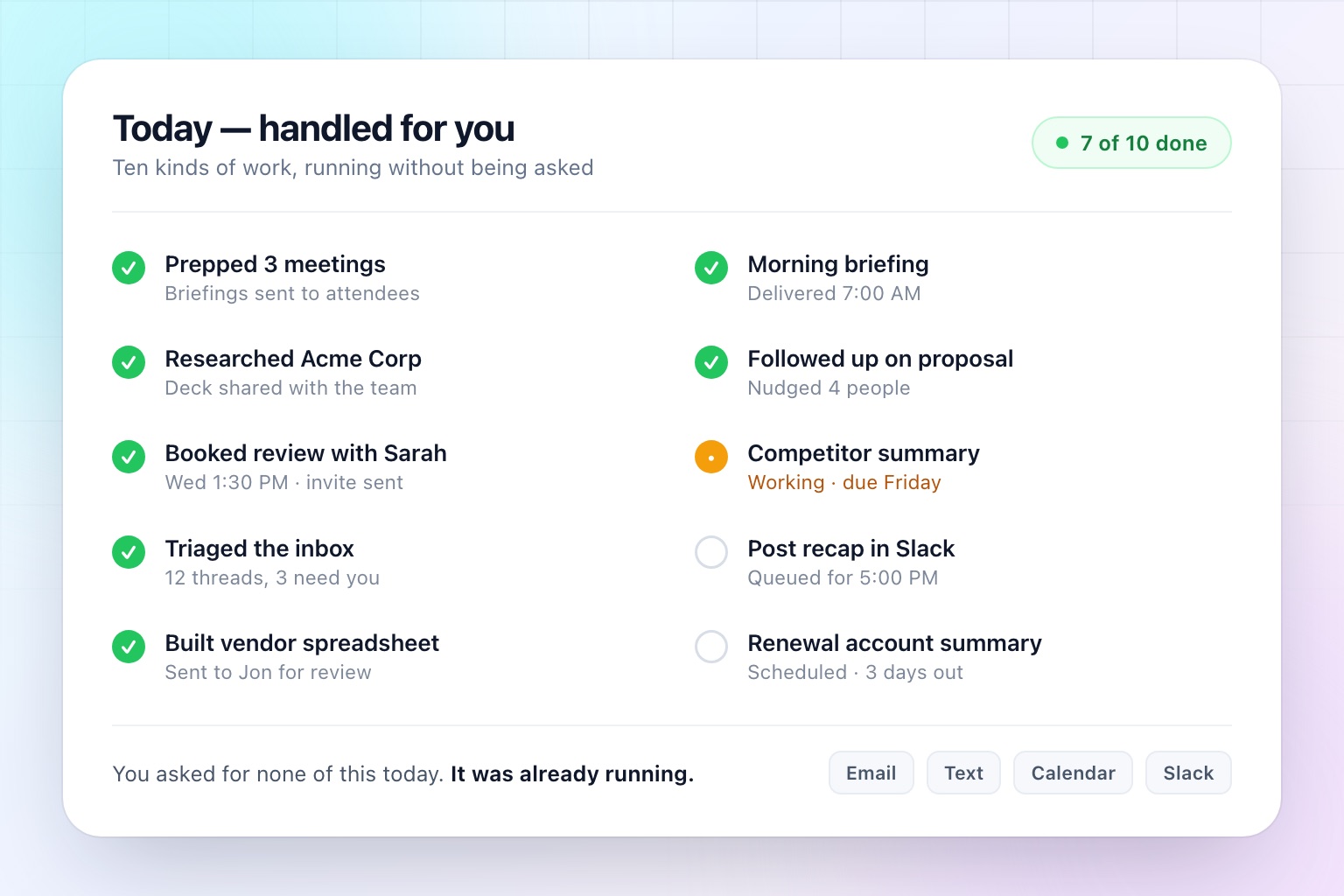
AI at work used to mean opening a chat window, typing a prompt, and getting text back.
That's still useful. In 2026, it's a small part of what AI can do.
The bigger shift is from asking AI questions to delegating work to AI. Modern assistants connect to the tools you already use, understand your context, complete multi-step tasks, communicate with other people, and handle recurring work without waiting to be prompted.
So what should you actually use AI for at work? Ten practical places to start:
- Prepare for meetings
- Research people, companies, and markets
- Manage your calendar
- Handle your email
- Create documents, presentations, and spreadsheets
- Get a daily briefing
- Follow up with people
- Automate recurring work
- Work across the tools you already use
- Delegate entire tasks
1. Prepare for Meetings
Instead of spending ten minutes before a call searching LinkedIn, rereading emails, and trying to remember why you're talking to someone, an assistant can pull the context together for you:
- who you're meeting with, and background on their company
- what you discussed last time
- relevant emails and documents
- suggested talking points and questions worth asking
But it doesn't have to stop at preparing you. It can send the same briefing to everyone from your team who's attending, or draft an agenda from the last conversation and send it to every attendee.
And it can happen before every meeting, automatically. You don't have to remember to ask — it's there when you need it.
2. Research People, Companies, and Markets
Research is one of the easiest jobs to delegate. Instead of opening fifteen tabs, ask AI to profile a company, compare competitors, size up a market, or summarize an unfamiliar topic.
But an answer in a chat window is only the first step. What you actually want is closer to:
Research our five biggest competitors, compare their pricing and positioning, build a deck with your findings, and send it to my team.
Now it isn't just doing the research — it's doing the work that comes after: turning findings into a deliverable and getting it to the people who need it.
That's where AI starts saving meaningfully more time than a chatbot.
3. Manage Your Calendar
An AI assistant can schedule meetings, find mutual availability, coordinate with attendees, reschedule when plans change, add video conferencing, protect focus time, and flag conflicts before they bite you.
Instead of sending five emails to find a time, you delegate the whole conversation. Someone asks to meet next week? Your assistant checks your calendar, picks times, emails the attendees, handles the replies, and puts the confirmed meeting on everyone's calendars.
Small task — but multiply it by every meeting you schedule in a month. It also avoids the worst scheduling habit there is: asking "what time works for you?" and starting an open-ended thread. If you're comparing tools in this category, we reviewed nine AI calendar assistants in detail.
4. Handle Your Email
Writing emails with AI is useful. Having AI manage email is far more useful — summarizing long threads, surfacing what actually needs you, finding the information required for a reply, drafting responses, and, when you want it to, replying on your behalf.
Take a message like:
Can we move our meeting to sometime next Thursday afternoon?
A writing tool helps you draft a reply. An assistant checks your calendar, finds when you're free, replies, settles on a time, and updates the invitation. You're never the intermediary.
That's the difference between AI that helps you write the email and AI that handles what the email is asking you to do.
5. Create Documents, Presentations, and Spreadsheets
You can hand an assistant a goal and get the actual deliverable:
Review these invoices and build a spreadsheet showing spending by vendor and month.
But creating the file doesn't have to be the end of the task:
Draft the proposal, send it to Jon, and ask him for feedback.
The assistant can move work between people instead of leaving you another file to download, attach, share, explain, and chase.
That's the difference between content generation and delegation. The goal isn't creating things faster. It's moving work forward.
6. Get a Daily Briefing
Most people start the day checking their inbox, calendar, Slack, task manager, CRM, and the news. AI can do that first pass for you.
Every morning, review my calendar, important emails, outstanding tasks, and relevant company updates, then send me a short briefing of what I need to know today.
Instead of checking five systems, you start with a summary of what deserves your attention. And because it's recurring, you never have to ask — it just shows up.
7. Follow Up With People
A surprising amount of work is just remembering to follow up. Did the prospect respond? Did someone send the document they promised? Has the customer confirmed?
If Sarah hasn't responded to my proposal by Thursday, remind me.
Remind Jon about the numbers he promised me if I don't have them by Friday.
Instead of maintaining a mental list of everything you're waiting on, you delegate the remembering — and, when it's appropriate, the following up itself.
8. Automate Recurring Work
The best AI tasks are often the ones you shouldn't have to remember to ask for.
- Every Friday, summarize the biggest developments from our competitors.
- Every Monday, review our open projects and tell me which ones haven't been updated.
- Three days before every customer renewal, prepare an account summary.
These aren't prompts. They're workflows. You describe what you want and when, and it happens on an ongoing basis.
Instead of only using AI while you're sitting in front of it, AI works while you're doing something else.
9. Work Across the Tools You Already Use
Work doesn't happen in one chat window. It happens in email, Slack, calendars, documents, CRMs, and project management tools. An assistant connected to those systems can span several of them in a single request:
Research this company before our meeting tomorrow, create a briefing, send it to everyone on our team who's attending, and post a summary in Slack.
The channel works in both directions, too. Your OpenAssistant has its own name, face, and personality, along with its own email address and phone number — so you can email it, text it, or add it to a thread the way you'd cc a coworker. And it can email and text other people on your behalf from that same identity.
The goal isn't another place to work. It's AI working in the places you already do.
10. Delegate Entire Tasks
Instead of asking how should I do this?, you can increasingly say do this.
Figure out a time when everyone can meet next week, coordinate with the attendees, and schedule it.
Prepare me for tomorrow's customer meetings and send the briefing to everyone internally who's attending.
The assistant breaks the assignment into steps, gathers information, uses connected tools, communicates with other people, produces the deliverables, and comes back when the work is done — or when it needs your input.
That's a fundamentally different way to use AI.
How Much Autonomy Should You Give It?
Handing over real work raises a fair question: what is it allowed to do without asking me first?
That's a setting, not a guess. OpenAssistant runs anywhere along the spectrum:
- Fully autonomous. It emails people, coordinates, and completes work on its own, then tells you what it did.
- Manual approval on everything. Nothing leaves your account until you've read it and said yes.
- Anywhere in between. Book internal meetings freely, but hold client emails for review.
Most people start cautious and loosen the dial as they watch the assistant handle real work. The dial is yours, and it can sit in a different place for different kinds of work.
Where to Start With AI at Work
Look at your workday and ask one question: what do I do repeatedly that I would happily hand to someone else?
Start there.
AI is great at answering questions, writing content, and helping you think. The bigger opportunity is what happens after the answer. Can it send the email? Schedule the meeting? Create the presentation? Get someone's feedback? Remember to follow up? Do it again tomorrow without you asking?
That's where AI stops feeling like a tool and starts feeling like an assistant.
Frequently Asked Questions
What is the best way to start using AI at work?
Start with the work you repeat. Find the task you do over and over that you would happily hand to someone else — meeting prep, weekly summaries, chasing people for answers. Recurring work is the easiest to describe, the easiest to verify, and the fastest to pay you back.
What is the difference between an AI chatbot and an AI assistant?
A chatbot answers you. An assistant acts for you. A chatbot can draft an email about rescheduling a meeting; an assistant can check your calendar, email the other person, agree on a time, and update the invite. The difference is access to your tools, the ability to contact other people, and the ability to start work without being prompted.
Is it safe to let AI send emails on my behalf?
That should be a setting rather than a leap of faith. A good assistant lets you choose how much autonomy it has, and lets that setting differ by kind of work — booking internal meetings on its own, say, while holding anything customer-facing for your approval. Most people start with approvals on everything and loosen the dial as they see how it handles real work.
Do I need technical skills to automate work with AI?
No. Unlike traditional automation, you do not build a flowchart of steps. You describe the responsibility in plain English — "every Friday, tell me which open projects have not been updated" — and the assistant handles the judgment calls inside it.
How much time does using AI at work actually save?
The savings come less from any single task than from the volume of small ones. Scheduling one meeting saves a few minutes; scheduling every meeting, preparing every briefing, and chasing every open loop removes a category of work from your week rather than a line item.
Give Your AI Work, Not Just Questions
OpenAssistant is built around this idea: an AI assistant with a name, a face, and a real personality, working across the tools and communication channels you already use.
It can schedule meetings, manage email, research topics, create files, prepare you for meetings, communicate with other people on your behalf, and run recurring workflows — with as much or as little autonomy as you decide to give it.
You can still ask it questions. But more importantly, you can give it work.
See it in the product
Put AI to work on your actual workload
OpenAssistant handles scheduling, follow-ups, research, and recurring work in the tools you already use.